





























































Restoring Selected Files from Your Website
Sometimes you may have modified or accidentally deleted a single file or a group of files, and restoring your entire website would be unnecessary or disruptive. Hipposerve® Rewind allows you to restore only the specific files you need, saving time and avoiding unwanted changes to the rest of your site.
This is particularly useful when troubleshooting issues, recovering overwritten files, or rolling back small changes without affecting your full website.
1. Accessing Your Backups
Access the Full Backups section as described in our guide here:
Restoring Your Website
From the list of restore points.
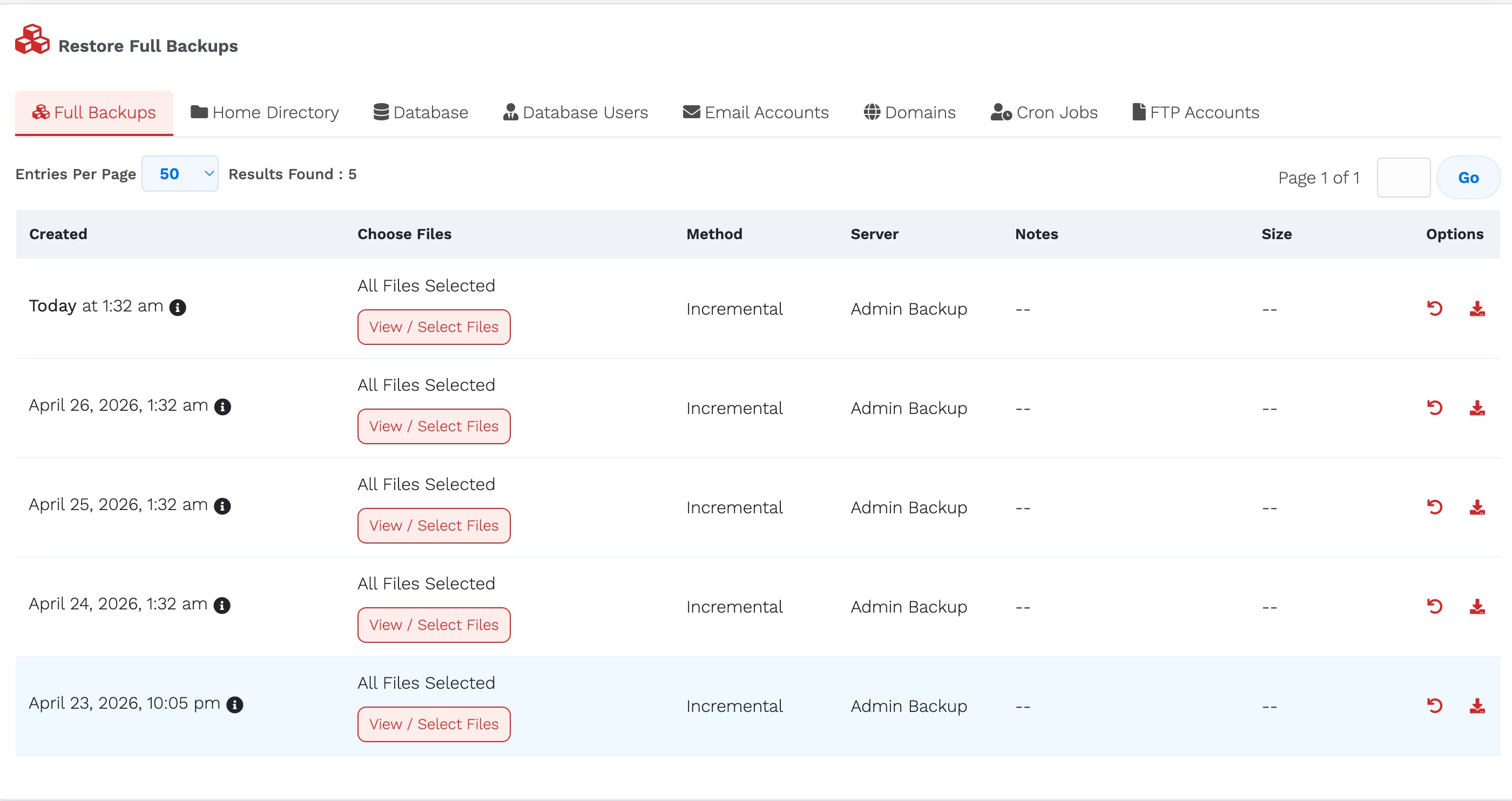
Select the backup you wish to use and click View / Select Files.

2. Selecting Files
You will be presented with the full folder structure of your website at that point in time. From here, you can browse and select the individual files or folders you wish to restore.
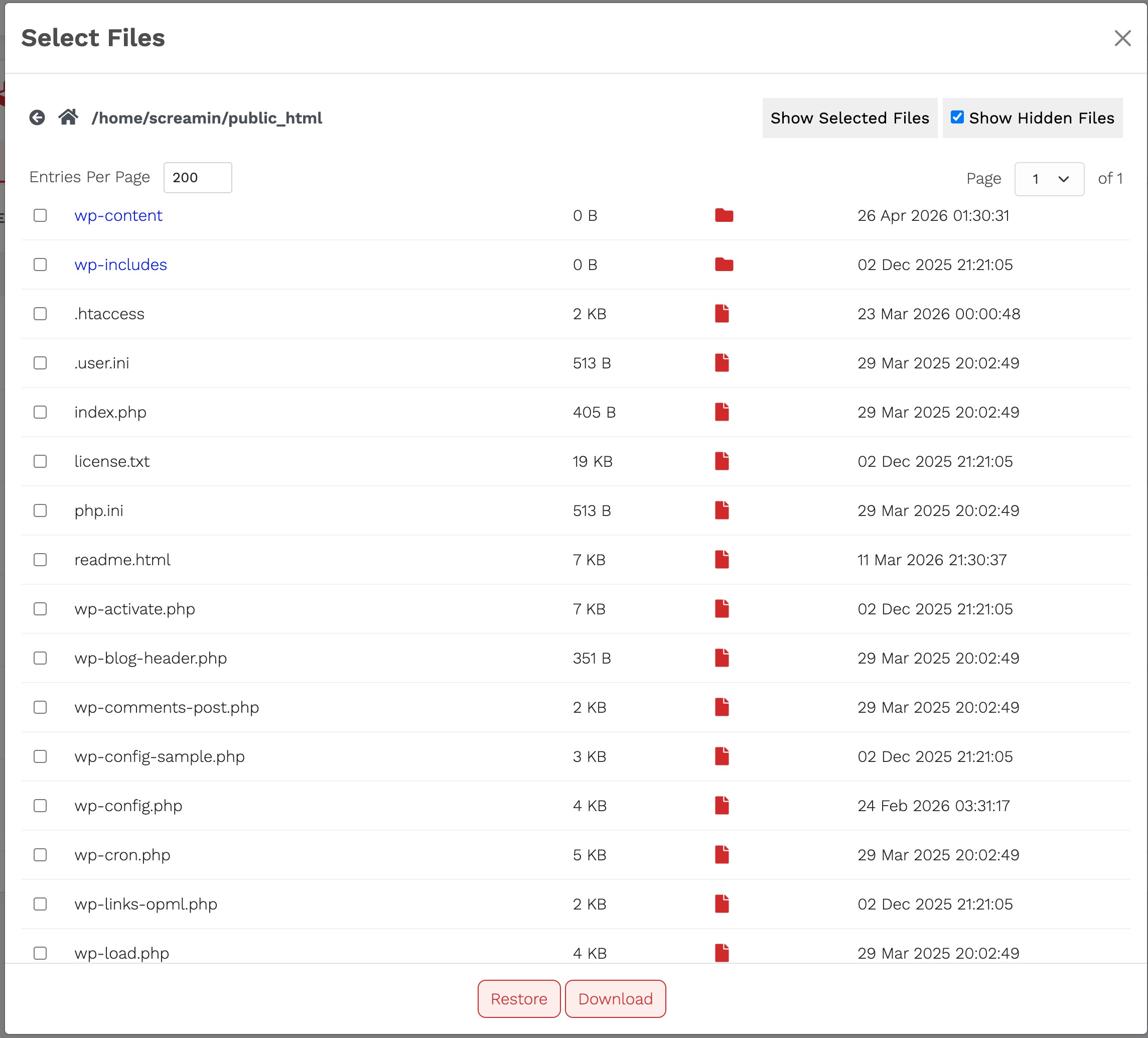
Once selected, you can choose to either restore the files directly to your live website or download them to your local computer.
3. Downloading Selected Files
If you choose to download the selected files, they will be prepared and made available in the View Downloads section of the Hipposerve® Rewind panel.
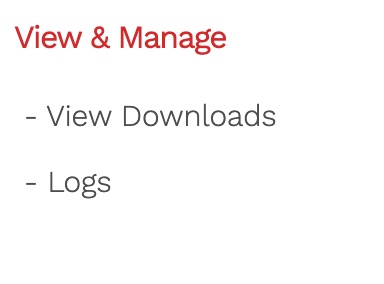
To complete the download process, follow the guide here:
Downloading a Full Copy of Your Website